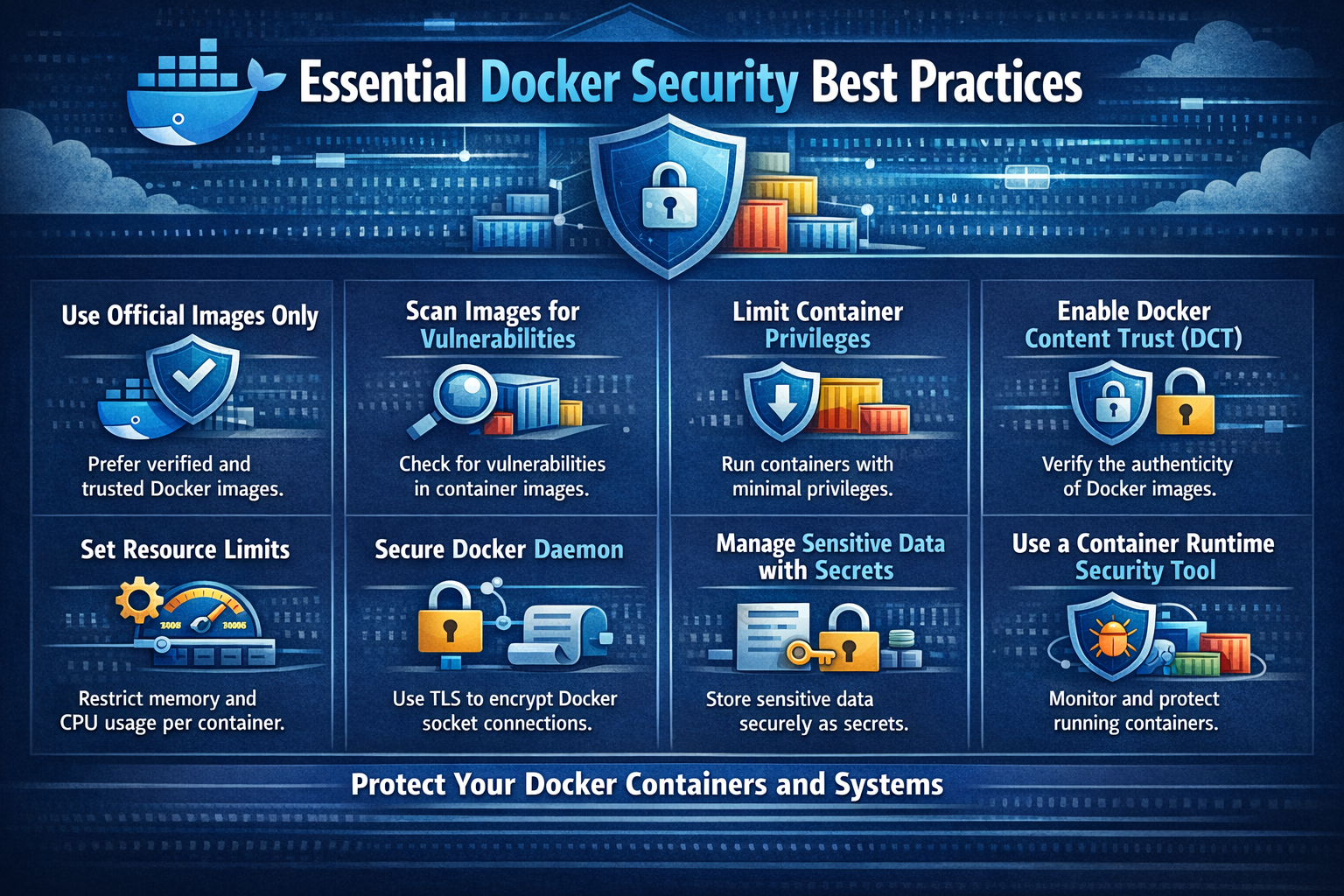
Essential Docker Security Best Practices
March 22, 2024
Hardening the Whale: A Comprehensive Guide to Docker Security Best Practices
In the modern era of cloud-native development, Docker has become the standard for packaging and deploying applications. However, with great portability comes great responsibility. A single misconfigured container can serve as a gateway for attackers to breach your entire infrastructure.
Securing your Docker environment isn’t a one-time task; it’s a continuous process of hardening and monitoring. In this guide, we will break down the essential security practices every developer and DevOps engineer should implement to move from “it works” to “it’s secure.”
1. Start with a Trusted Foundation: Official Base Images
The FROM instruction in your Dockerfile is the foundation of your entire application stack. If you start with a compromised or bloated base image, you are building on shaky ground.
Why it matters:
Public registries like Docker Hub contain thousands of images. Many are community-contributed and may be unpatched, outdated, or even intentionally malicious. Using an “Official Image” means the image is maintained by the Docker team or the upstream software authors (like Node.js, Python, or Nginx).
Best Practices:
- Use Specific Tags: Avoid using
latest. Thelatesttag is unpredictable; a new update could break your build or introduce a vulnerability. Use versioned tags (e.g.,node:18.16.0-slim). - Prefer “Slim” or “Alpine” variants: These versions remove unnecessary tools (like compilers or network utilities), significantly reducing the “attack surface.”
# ❌ BAD: Untrusted source and vague tag
FROM untrusted-user/my-node-app:latest

# ✅ GOOD: Official, versioned, and minimal
FROM node:18.16.0-slim
2. Implement Continuous Vulnerability Scanning
Security is a moving target. A library that is secure today might have a Critical Vulnerability (CVE) discovered tomorrow.
How to do it:
You should integrate scanning into your CI/CD pipeline. This ensures that no image is pushed to your production registry if it contains high-severity vulnerabilities.
Recommended Tools:
- Trivy: An easy-to-use, fast security scanner that detects vulnerabilities in OS packages and application dependencies.
- Snyk: Excellent for developer-focused security and providing remediation advice.
- Docker Scout: Docker’s built-in tool that provides real-time insights into your image layers.
Pro-Tip: Don’t just scan during build time. Periodically scan images that are already running in production to catch “newly discovered” vulnerabilities.
3. The Principle of Least Privilege: Non-Root Users
By default, Docker containers run as the root user. This is one of the most dangerous defaults in the container world. If an attacker manages to exploit an application vulnerability and gain shell access, they will have root privileges inside the container—making it much easier to “break out” and attack the host machine.
The Solution:
Explicitly create a user with limited permissions and switch to that user using the USER instruction.
# Create a system group and user
RUN groupadd -r appuser && useradd -r -g appuser appuser

# Set working directory and change ownership
WORKDIR /app
COPY . .
RUN chown -R appuser:appuser /app

# Switch to the non-root user
USER appuser

CMD ["node", "index.js"]
4. Minimize the Attack Surface with Multi-Stage Builds
A typical build process requires compilers, build tools, and temporary files that are not needed to run the application. If these tools remain in your production image, an attacker can use them to compile exploits or probe your network.
The Strategy:
Use Multi-Stage Builds. This allows you to use a “heavy” image to build your app and then copy only the final executable or production files into a “lightweight” runtime image.
# Stage 1: Build
FROM node:18 AS build-stage
WORKDIR /app
COPY package*.json ./
RUN npm install
COPY . .
RUN npm run build

# Stage 2: Production (The only part that gets deployed)
FROM node:18-slim
WORKDIR /app
# Only copy the necessary production files from the build stage
COPY --from=build-stage /app/dist ./dist
COPY --from=build-stage /app/package.json ./
RUN npm install --only=production

USER node
CMD ["node", "dist/server.js"]
5. Never Embed Secrets in Dockerfiles
It is a common mistake to hardcode API keys, database passwords, or SSH keys into a Dockerfile or pass them via ENV variables.
Why this is a risk:
Environment variables are visible to anyone who can run docker inspect or docker history on the image. These secrets are essentially “baked” into the image layers forever.
The Secure Way:
- Docker Secrets: For Swarm mode.
- Environment Files (
.env): Loaded at runtime, but never committed to version control. - Secret Managers: Use tools like HashiCorp Vault, AWS Secrets Manager, or Azure Key Vault to inject secrets directly into the container at runtime.
6. Hardening the Runtime: Read-Only Filesystems
Most applications don’t need to write to their own internal filesystem during execution. By making the container’s root filesystem read-only, you prevent attackers from downloading malicious scripts or modifying your source code.
How to implement:
You can enforce this at the runtime level using the --read-only flag. If your app needs to write to a specific folder (like /tmp or a log folder), you can mount a temporary volume (tmpfs) for that specific path.
docker run --read-only --tmpfs /tmp my-secure-app:latest
Final Thoughts
Container security isn’t about one single “magic” setting; it’s about defense in depth. By combining trusted images, non-root users, minimal footprints, and constant scanning, you create a robust environment that is significantly harder to compromise.
Stay vigilant, keep your images small, and always assume that the “root” user is your biggest liability!
Want more deep dives into cloud security? Subscribe to our newsletter for weekly technical guides!